On this page
Help / Scan station
Send an order by carrier
Use a carrier such as UPS, FedEx or USPS instead of the courier, pick the carrier, and print its label.
For: Pharmacy techSend an order by carrier
Read the transcript
This one is going to Asheville, far outside our courier's area. I scan it.
It opens on Courier, so I choose Carrier.
Same Day and Next Day are gone. Those are courier choices.
I pick UPS Ground from the list.
Release and print.
The UPS label prints.
The next one is outside the area too. I scan it.
This time I leave it on Courier, by mistake.
Release and print.
A moment later it shows up under Needs attention.
I open that row.
Release failed. It is outside the courier's zones.
Send by carrier.
UPS Ground is already chosen.
Release and print.
The row leaves Needs attention, and the label prints.
Film: Send an order by carrier. Watch it online at https://totepath.com/docs/station/ship-by-carrier
Some orders cannot go with the courier's drivers, for example when the address is outside the courier's delivery area. Those orders can go by carrier instead. TotePath buys the shipping label from the carrier, and the label prints at your station.
The courier's office sets up which carriers and services each pharmacy has (a Tenant Owner in the TotePath portal). You do not enter any carrier account details at the station.
Steps
- Scan the order so it is on the bench, and check the address.
- Select Carrier instead of Courier. Same Day and Next Day disappear and a carrier list appears.
- Choose a carrier from the list. Each entry shows the carrier name and its service.
- Click Release & print.
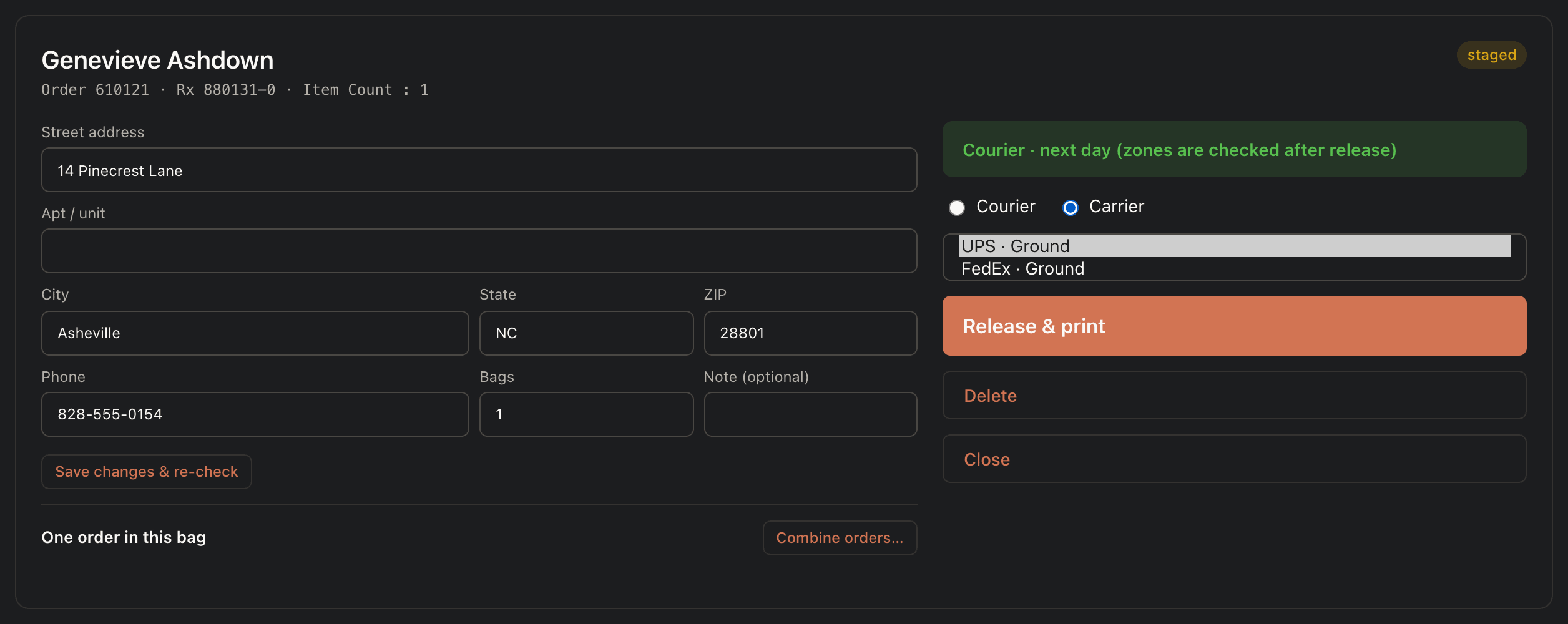
When the courier cannot take the order
If you release to the courier and the address is outside its delivery area, the bench closes as usual and the failure shows a moment later. Do this:
- A red Needs attention strip appears above the scan box with "Outside the courier's zones" in the What happened column.
- Click the row. The order opens on the bench and shows Release failed.
- Click Send by carrier. The station switches to Carrier and moves to the carrier list. A note says "Pick the carrier, then Release."
- Choose the carrier.
- Click Release & print.
TotePath never moves the order to a carrier on its own. A person always chooses.
What you will see
- A green message: "Order 610150 released → carrier. Label prints in a moment."
- The order shows "releasing…" in the list while TotePath buys the label. This can take a few seconds.
- The carrier's own label prints. It looks different from a courier bag label. Put it on the bag.
- The order moves to Released today.
A carrier shipment does not go with the courier's driver, so it is not part of the courier handoff. See Handoff to the courier.
Undo a carrier label
You can cancel a carrier label before the carrier has the bag. The postage is refunded under the carrier's rules.
- Click Released today and click the order.
- Click Void label and confirm the question that appears.
A message says "Label voided; order 610150 is back in the queue." The order goes back to Waiting for release.
If the carrier refuses to void, the bag is probably already moving. Ask the courier's office.
If something goes wrong
- "Pick a carrier for this shipment." You chose Carrier but did not choose an entry from the list.
- The list says "No carriers set up for this station". No carrier has been set up for your pharmacy. Tell the courier's office. They set it up in the portal under Settings, Delivery Providers (the carrier list) and Settings, Locations (the pharmacy's carrier accounts).
- The release fails. Open the order from Needs attention and read the message. See Needs attention.
- The wrong carrier was used. See Fixing mistakes.