On this page
- Switch to Batch release
- Scan the pile
- What you will see
- If something goes wrong
- Orders that land in Needs a look
- Move a bag to the other list
- Take a bag out of the batch
- Release a list
- The courier list
- The carrier list
- What you will see while it runs
- If something goes wrong
- Clean up
- Before you start the next pile
Help / Scan station
Release a pile of bags at once (Batch release)
Scan a pile of finished bags, let the station sort them into courier and carrier lists, then release and print each list in the order you scanned.
For: Pharmacy techRelease a pile of bags at once
Read the transcript
A whole pile of bags is waiting. I switch to Batch release.
Now I scan the pile, one bag after another.
Each one checks the zones, then lands in a list.
Six bags are in the courier list, in the order I scanned them.
Two are outside the courier's area, so they wait in the Carrier list.
One bag is not for today. I take it out, and it stays in the queue.
UPS Ground is already picked for the Carrier list.
Now Release and print, on the courier list.
The labels print one at a time, in the order I scanned them.
Now the carrier list. Buy and print.
Both carrier rows say printed.
Clear printed takes the finished rows off the lists.
Film: Release a pile of bags at once. Watch it online at https://totepath.com/docs/station/batch-release
Batch release is for the end of a run, when you have a pile of finished bags on the counter. Instead of scanning, checking and releasing one bag at a time, you scan the whole pile first. The station sorts every bag into a list. Then you release a list with one click and the labels print one after the other, in the order you scanned. The labels normally come off the printer in the same order as the pile. Always check the patient name on each label against the bag before you stick it on.
Use Release & print instead (see Release an order to the courier) when you want to check or change an address, split an order into several bags, or add a note. Batch release is for orders that are ready to go as they are.
Switch to Batch release
- On the Scan station tab, click Batch release at the top. It sits between Release & print and Handoff to courier.
- The line under the heading changes to "Scan every bag in the pile. Each order joins the courier list or the carrier list; release a list and its labels print in the order you scanned."
- The scan box now says Scan each bag in the pile, or type the order number, then Enter.
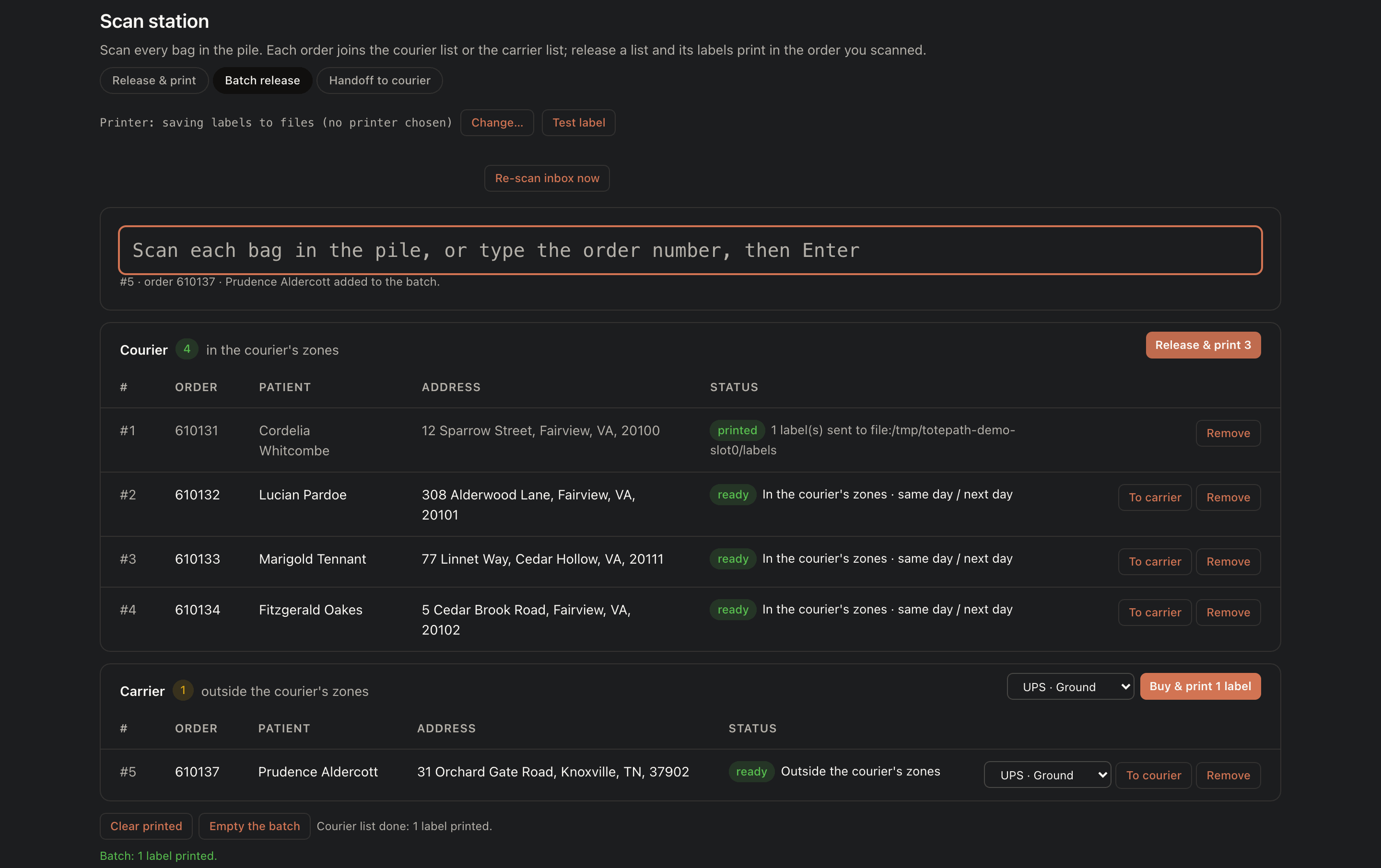
Switching mode clears the bench. The Waiting for release list stays under the lists, so you can see what has not been scanned yet.
Scan the pile
- Scan the Rx label on the first bag, or type the order number and press Enter.
- The bag joins the pile with a number. A message under the scan box reads, for example, "#1 · order 610150 · Patient name added to the batch."
- Scan the next bag. Keep going until the pile is done.
You can also click an order in the Waiting for release list to add it. An order whose earlier release failed, or one you click in another list such as Released today, opens on the bench in Release & print instead. Orders already in the batch show a grey in batch # tag with their place in the pile.
Pressing Enter on an empty scan box does nothing in this mode. A whole list is never released by a stray keystroke.
What you will see
Each bag appears as a row with its number (#1, #2 and so on), the order number, the patient, the address and a status. For a moment the row says checking and sits under Needs a look while the station asks TotePath whether the address is inside the courier's zones. Then it moves to its list:
| List | What goes in it | Button |
|---|---|---|
| Courier (in the courier's zones) | Orders the courier covers. | Release & print |
| Carrier (outside the courier's zones) | Orders outside the courier's zones. | Buy & print labels |
| Needs a look (held out of the batch until someone decides) | Orders the station could not sort. This list only shows when it has something in it. | none |
A ready row has the green status ready. A row for the courier also says what the zone check found, for example "In the courier's zones". A bag that was combined with other orders is one row, and its order number shows with a plus sign and a count, such as "610150 +1".
If a row says "USPS suggests a corrected address" or "USPS could not verify this address", that is a note for you. It does not hold the order. The row stays in its list.
If something goes wrong
- "Order ... is already released; it was not added to the batch." The order was released earlier. Look under Released today if you need a label again. See Reprint, void, delete and restore.
- "Order ... is deleted; it was not added to the batch." Restore it first, or leave it out.
- "Order ... is already in this batch (#...)." You scanned the same bag twice. Nothing is lost.
- "No order at this pharmacy matches..." Same as on the bench. See Station troubleshooting.
Orders that land in Needs a look
An order goes to Needs a look instead of a list when:
- an earlier release of that order failed, or
- the zone check gave no answer (the row shows the reason, for example "Zone check unavailable", or "The station cannot reach TotePath").
These orders wait there and do not hold up the others. The row shows a red status held and the reason. The buttons on the row:
| Button | What it does |
|---|---|
| Re-check | Runs the zone and address check again. |
| Add to courier / Add to carrier | Puts the order in that list as it is. The row says "Added by hand". Use it only when you know where the bag should go. |
| Open | Takes you to Release & print with this order on the bench, so you can fix the address. Back in Batch release, held orders are checked again by themselves. |
| Remove | Takes the order off the batch. It stays in the queue. |
Move a bag to the other list
Each ready row has a button that sends it to the other list: To carrier on a courier row and To courier on a carrier row. The row says it was moved by hand. Use this when you know a bag should go the other way.
Take a bag out of the batch
Click Remove on its row. The order stays in Waiting for release, untouched, and you can scan it again later. Remove is hidden while that order is being released.
Release a list
The courier list
- Check the list. The button on the list reads Release & print and a count, for example Release & print 4.
- Click it.
- Take each label from the printer as it comes out. Check the patient name and address on the label against the bag, then stick it on. Do not label by position alone. If a row shows no label yet or label did not print (see below), the labels no longer follow the pile: match every label by name, and put a late or reprinted label on its own bag.
Batch release does not ask you to pick Same Day or Next Day, set the Bags count or add a note. It works like leaving Same Day / Next Day blank on the bench: TotePath picks the service from the pharmacy's cutoff. See Same Day, Next Day or blank.
The carrier list
- The box at the top of the list already shows a carrier (the first one set up for your pharmacy). Check it is the right one before you buy. It applies to every order in the list that has not been given its own. If your pharmacy has more than one carrier, each ready row also has its own carrier box.
- Click Buy & print labels. The button shows the count, for example Buy & print 2 labels.
- A confirmation box asks, for example, "Buy 2 carrier labels? Postage is charged for each one." (It reads "Buy 1 carrier label?" for a single order.) Click OK to buy the labels, or Cancel to stop and buy nothing. Click OK only if you are sure, because postage is charged for each label.
If your pharmacy has no carriers set up, the button stays grey. Ask your pharmacy manager or the courier's office.
What you will see while it runs
- A progress line under the lists, beside Clear printed and Empty the batch, reads, for example, "Releasing 2 of 5: order 610152…" (or "Buying" for carrier labels). The button reads Releasing… or Buying….
- The station releases one order, waits for its label to print, then sends the next. That is what keeps the labels in the order you scanned. A busy printer or a slow carrier makes it take longer.
- Each row changes to releasing and then printed (green, greyed out).
- When the list is done, a line and a message read, for example, "Courier list done: 4 labels printed." If some did not work it adds how many "need a look".
- While one list is running you cannot start the other, and Empty the batch is grey.
If something goes wrong
- The status says "Not released:" with a reason. TotePath did not accept the order. It moves to Needs a look and the run goes on to the next bag. Click Open to fix the address on the bench, or see Orders that need attention.
- The status says "Release failed:" with a reason. The courier or carrier turned it down after TotePath accepted it. It moves to Needs a look. An order the courier or carrier turned down also shows in the Needs attention strip.
- A row says "no label yet". The order was released but its label did not print within about 90 seconds. The run moves on to the next bag. The label prints when it comes through. If it does not, look under Needs attention and under Released today.
- A row says "label did not print". The order is released, but Windows could not send the label to the printer. Fix the printer (power, cable, and that it is still installed on the PC). Then click Open on the row, and on the bench click Reprint labels. See Bag labels.
Clean up
- Clear printed takes the printed rows off the lists. The bags that did not print stay.
- Empty the batch takes everything off all the lists. It does not change any order. They stay in Waiting for release.
The batch lives only on this page. If you reload the page or close it, the lists are empty. Nothing is lost: orders that were not released are still in Waiting for release, and released ones are under Released today. Scan the pile again for any bag that has no label yet.
Before you start the next pile
When the courier arrives, switch to Handoff to courier and scan each bag as it goes into the van. See Handoff to the courier.