Help for TotePath
Step-by-step guides and short films for pharmacy teams, managers and owners. Find the task, then follow along at the counter.
Start with your job
Pick the role that fits you. Every page for that role is listed, grouped as the sections are ordered.
Pharmacy tech
Release orders at the counter, build bags and hand them off.
- How TotePath works
- Your first day
- Accept your invitation and sign in
- The Scan station at a glance
- Release an order to the courier
- Bags and combining orders
- Send an order by carrier
- Release a pile of bags at once (Batch release)
- Bag labels
- Reprint, void, delete and restore
- Orders that need attention
- Hand bags to the driver
- Station troubleshooting
- The portal at a glance
- Dashboard
- Find an order
- Order details and actions
- Proof of delivery
- What the patient sees when asked to sign
- Glossary
- Order and delivery statuses
- Troubleshooting and FAQ
- Getting help
Pharmacy manager
Keep the day’s orders moving and find the ones that stall.
Owner
Set up locations, people and billing.
IT
Install the agent on the counter PC and keep it healthy.
Browse by topic
Start here
Sign in and learn your way around.
- How TotePath worksWhat happens to an order from the moment PrimeRx exports it to the moment it reaches the patient's door.
- Your first dayThe five things a pharmacy technician does with TotePath, in the order you will meet them.
- Accept your invitation and sign inSet your password, set up two-step verification with an authenticator app, and sign in each day.
- Roles and what each can seeThe four TotePath roles, which pages each one sees, and how access to pharmacy locations works.
Scan station
The counter app that scans, labels and hands off orders.
- The Scan station at a glanceWhat the Scan station screen shows, how orders get onto it from PrimeRx, and how the barcode scanner behaves.
- Release an order to the courierScan the bag, check the address, release the order, and print the bag label.
- Bags and combining ordersOne bag per order is the default. Change the Bags count, or combine several orders for the same patient into one bag.
- Send an order by carrierUse a carrier such as UPS, FedEx or USPS instead of the courier, pick the carrier, and print its label.
- Release a pile of bags at once (Batch release)Scan a pile of finished bags, let the station sort them into courier and carrier lists, then release and print each list in the order you scanned.
- Bag labelsWhat is printed on a bag label, what the sort zone and driver barcode mean, and how to check the printer.
- Reprint, void, delete and restoreHow to print a label again, undo a carrier label, take an order out of the queue or bring it back, and fix a release that did not go through.
- Orders that need attentionWhat to do when a release did not go through and an order shows up in the Needs attention strip.
- Hand bags to the driverScan each bag as the driver takes it, so the pharmacy has its own record of what left and what is still on the shelf.
- Dashboard, Files and Log tabsWhat the other three tabs of the station window show, and when a tech or IT would look at them.
- Station troubleshootingWhat to check when the scanner does not type, a label does not print, an order does not appear, or the agent looks offline.
Web portal
Track orders and see proof of delivery from any browser.
- The portal at a glanceWhat each page of the TotePath web portal is for, and how to switch between pharmacy locations.
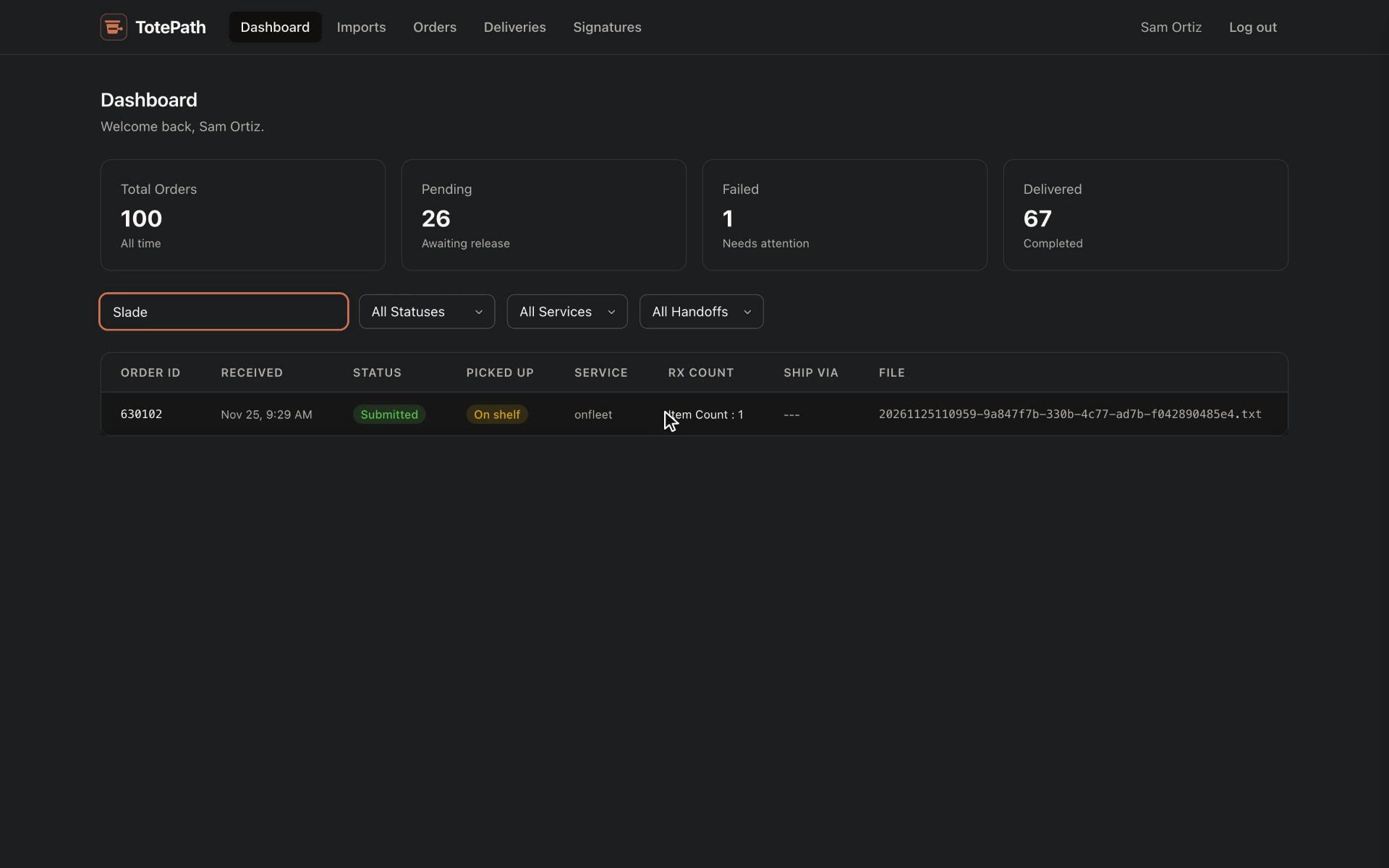
- DashboardSee every order that has arrived from PrimeRx, what state it is in, and which bags are still on the shelf.
- Find an orderLook up a courier delivery on the Orders page by PrimeRx order ID or recipient name, and know when to use the Dashboard instead.
- Order details and actionsRead an order's panel, its bag, handoff and event log, and use Release now, Mark as Resolved, Reprint label and Resend signature request.
- ImportsSee the order files your pharmacy PC has sent to TotePath, and what a failed file or a skipped row means.
- Deliveries and routesBrowse completed routes, open a route to see every stop, and read what the driver reported.
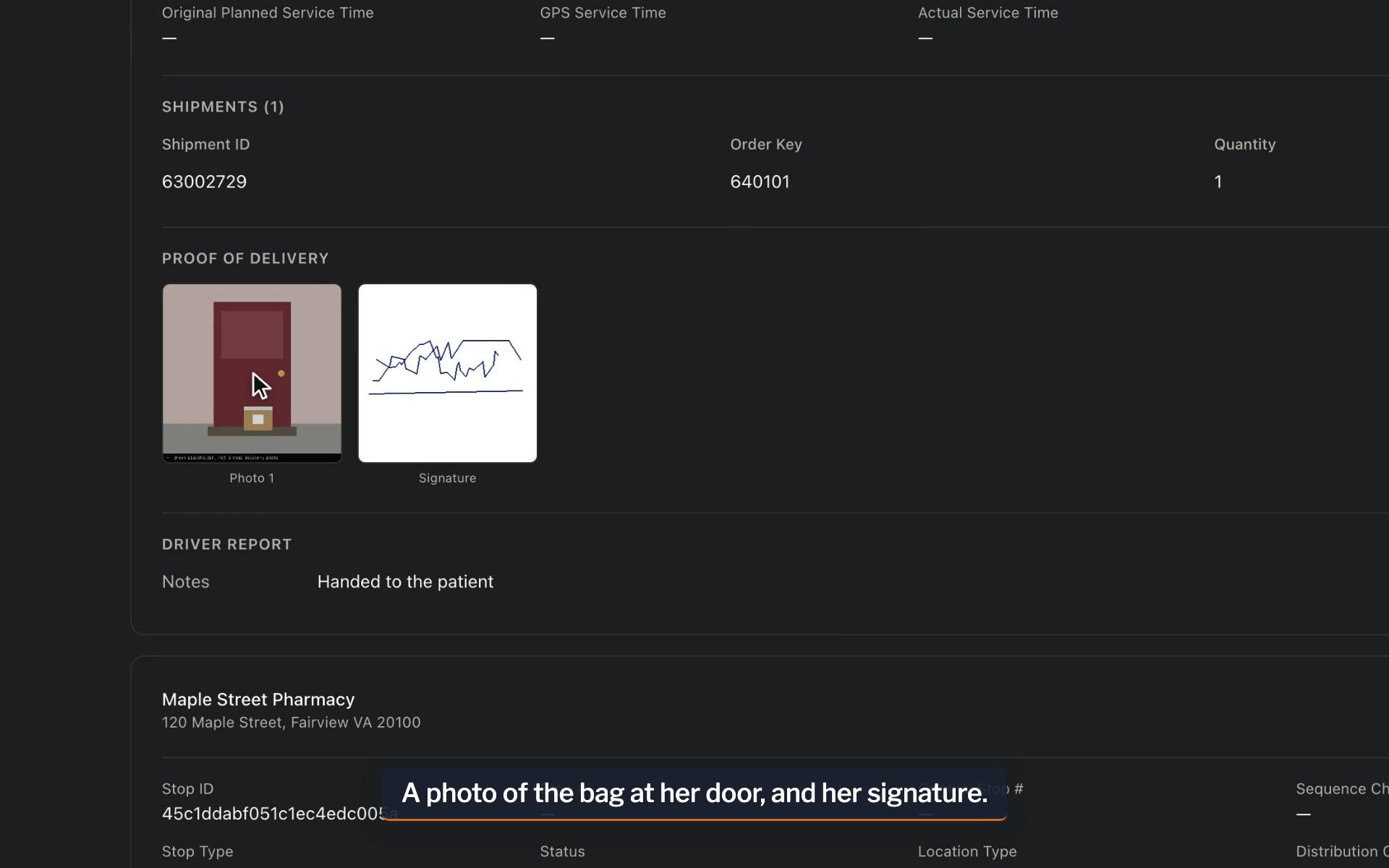
- Proof of deliveryFind the photos, signature and driver report for a delivery, and download the PDF receipt.
- SignaturesTrack which patients have been asked to sign for a delivery by email, resend requests, and export the list.
- What the patient sees when asked to signThe email and signing page a patient gets after delivery, so you can answer their questions.
- BillingWhat the Billing page shows, and which orders count toward the monthly bill.
Administration
Locations, people and settings for owners and managers.
- Invite and manage usersAdd people to TotePath, choose what they can see, and fix sign-in problems like a lost phone.
- LocationsSee every pharmacy your business serves, edit its details, and understand testing and live.
- Station and agent settingsChange the pharmacy PC's folder, printer and timing from the portal, and read the health indicators.
- Sort zonesKeep the list that decides which zone prints on each bag label.
- Delivery providersWhat the courier and carrier connections are, what an owner can see and change, and how carrier accounts work per pharmacy.
- Install the TotePath agent on a pharmacy PCInstall, check and remove the TotePath agent on the Windows computers that run PrimeRx and the scan station.
- Alerts and emails TotePath sendsWhich emails TotePath sends to your team, who gets each one, and what to do when one arrives.
Reference
Statuses, terms and answers to common questions.
- GlossaryPlain definitions of the words you meet in the Scan station and the web portal.
- Order and delivery statusesEvery status you see on the Scan station and in the portal, what it means, and what to do about it.
- Troubleshooting and FAQMessages you may see in the Scan station and the portal, what they mean, and what to do.
- Getting helpWho to ask first, how to contact TotePath, and what to include so we can help quickly.
Walkthrough films
Short narrated screen recordings, with a transcript under each, and captions you can switch on in the player.
- Release an order to the courierScan the bag, check the address, release the order, and print the bag label.
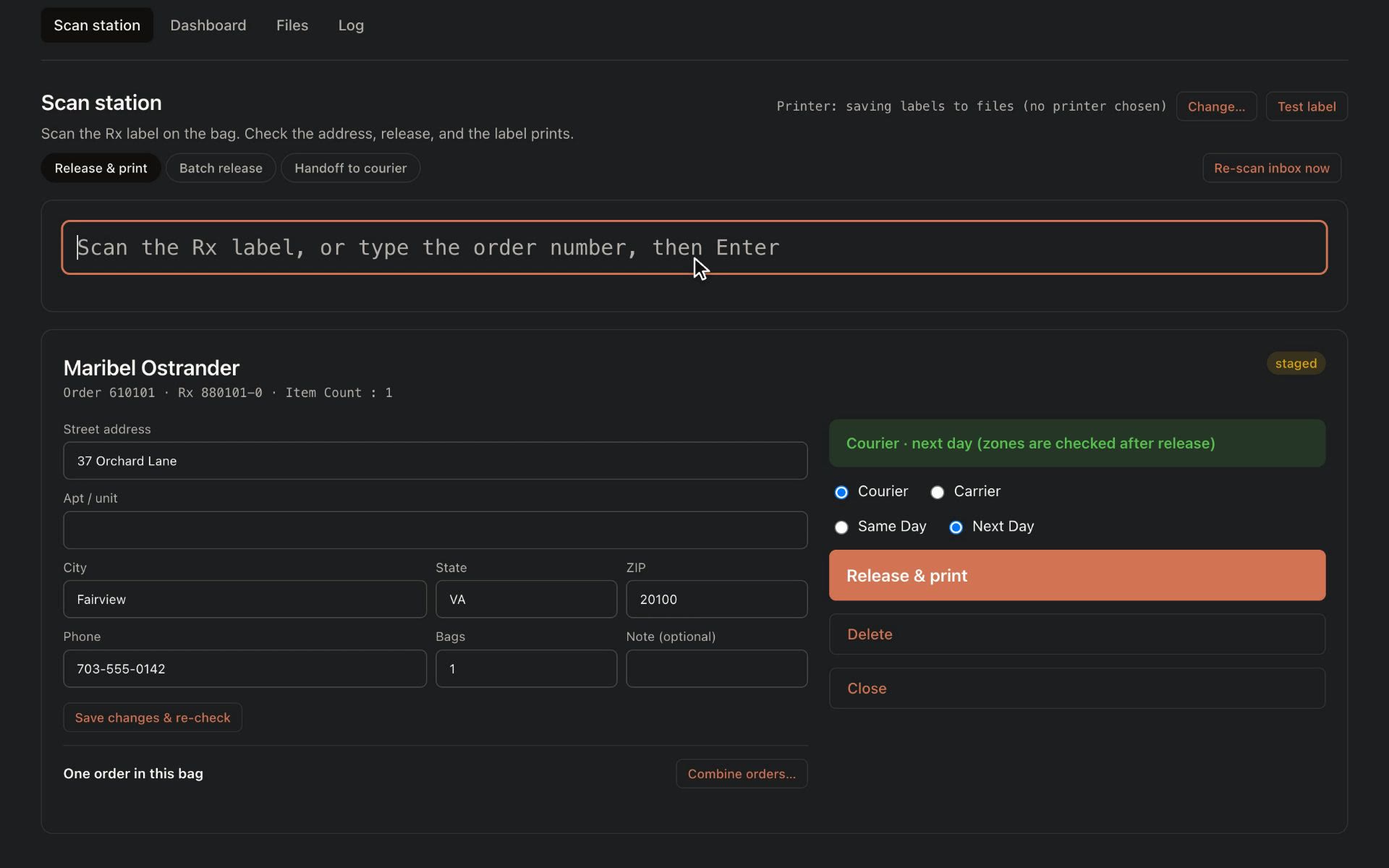
- Bags, and combining ordersOne bag per order is the default. Change the Bags count, or combine several orders for the same patient into one bag.
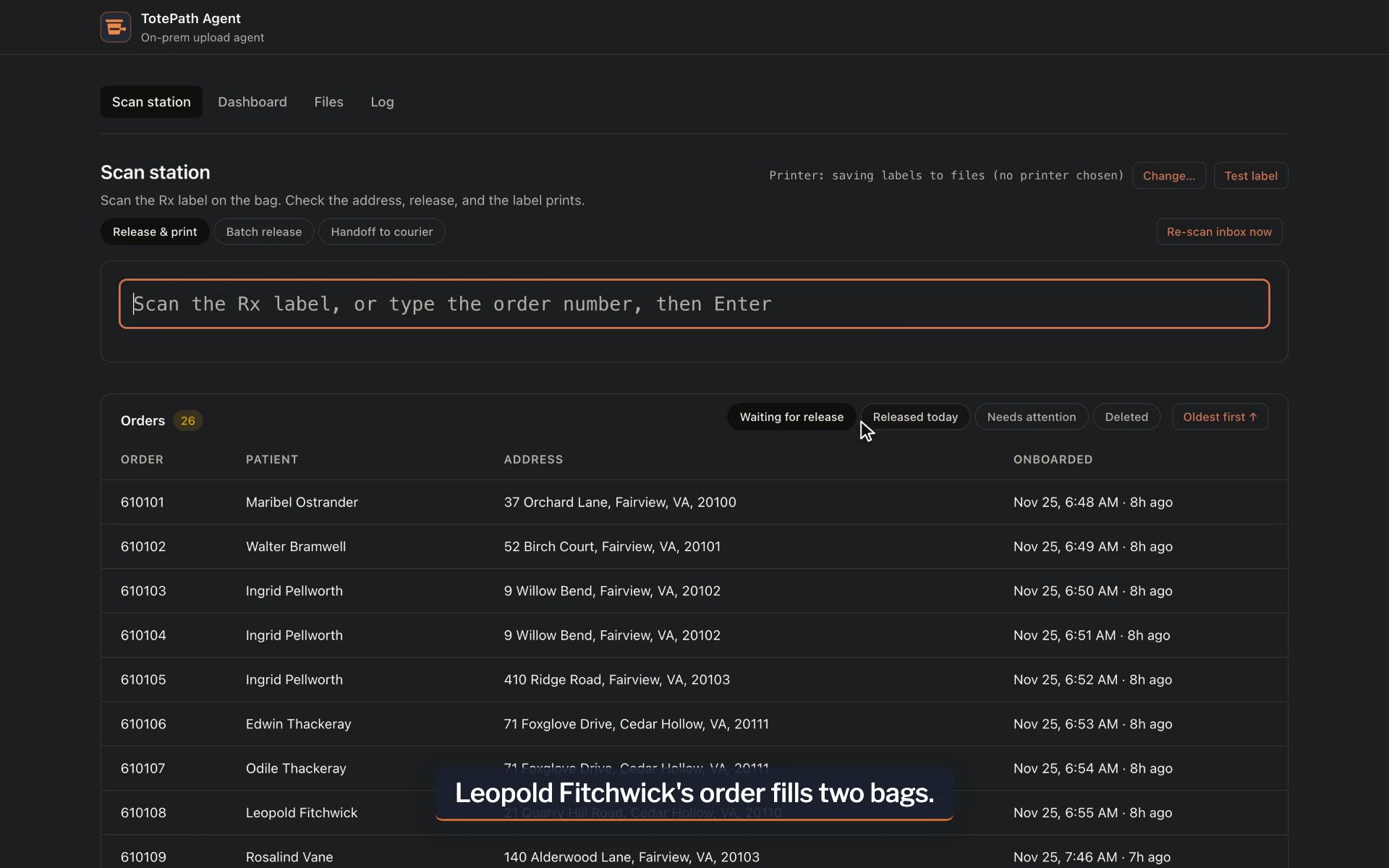
- Send an order by carrierUse a carrier such as UPS, FedEx or USPS instead of the courier, pick the carrier, and print its label.
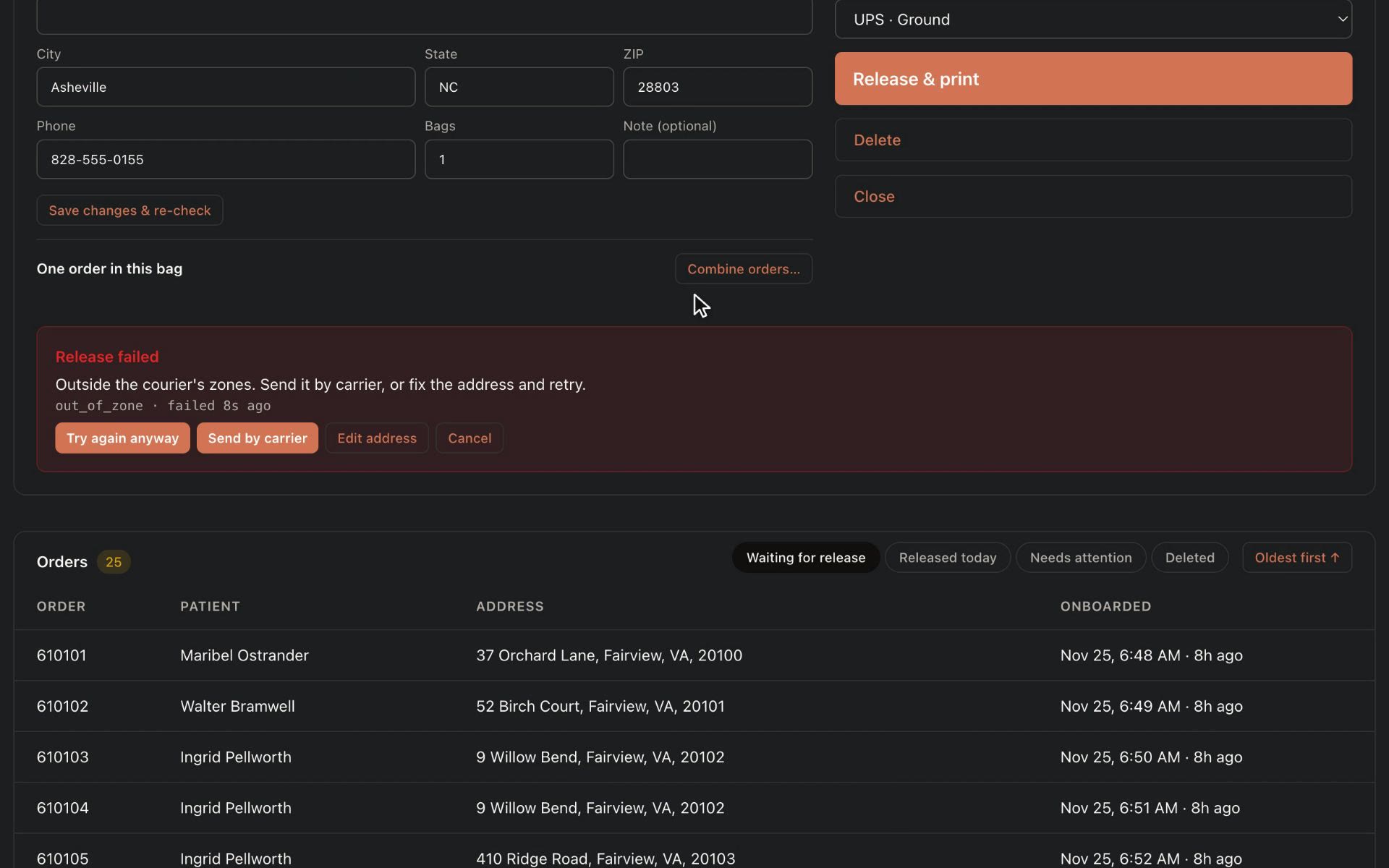
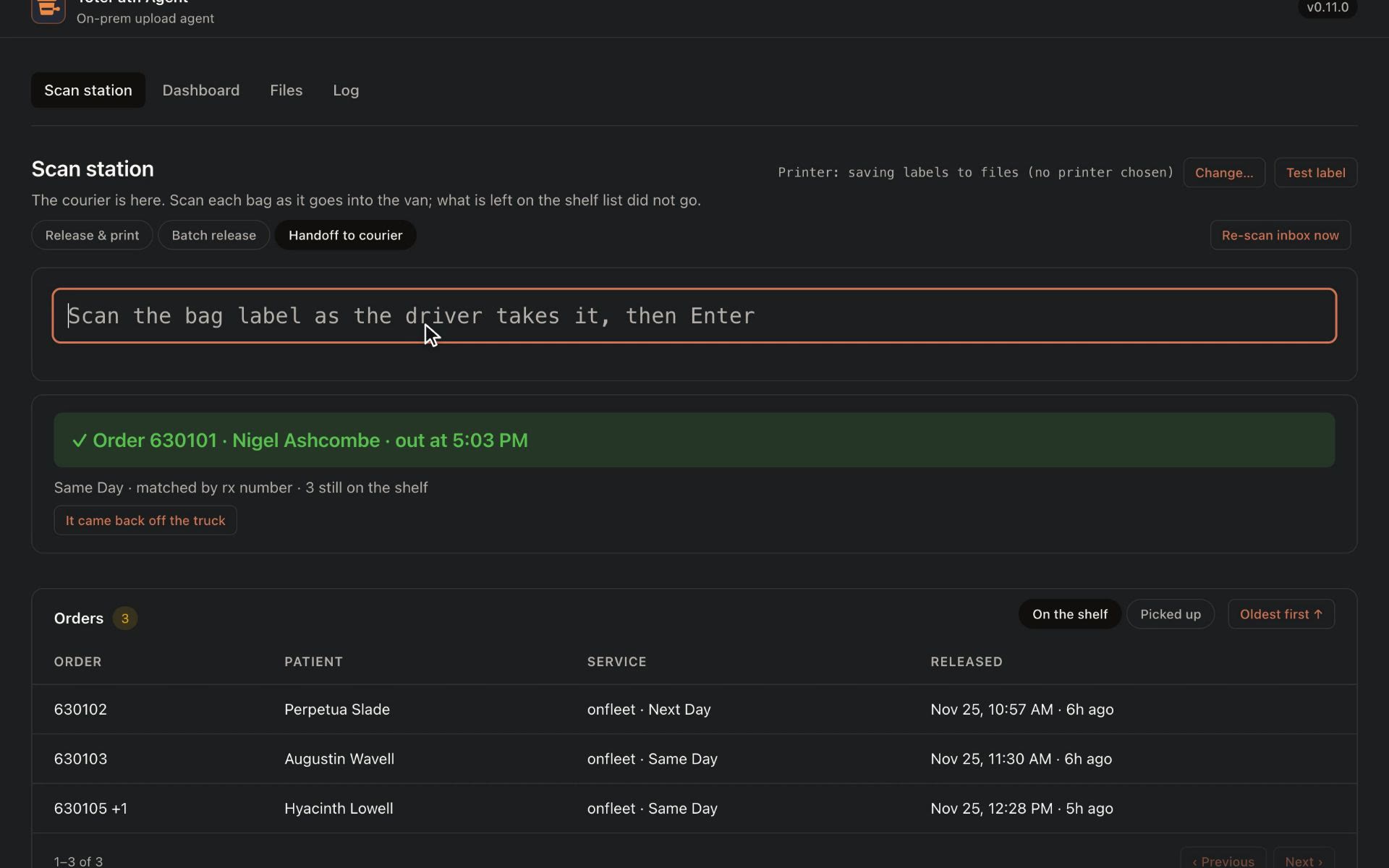
- Hand bags to the courierScan each bag as the driver takes it, so the pharmacy has its own record of what left and what is still on the shelf.
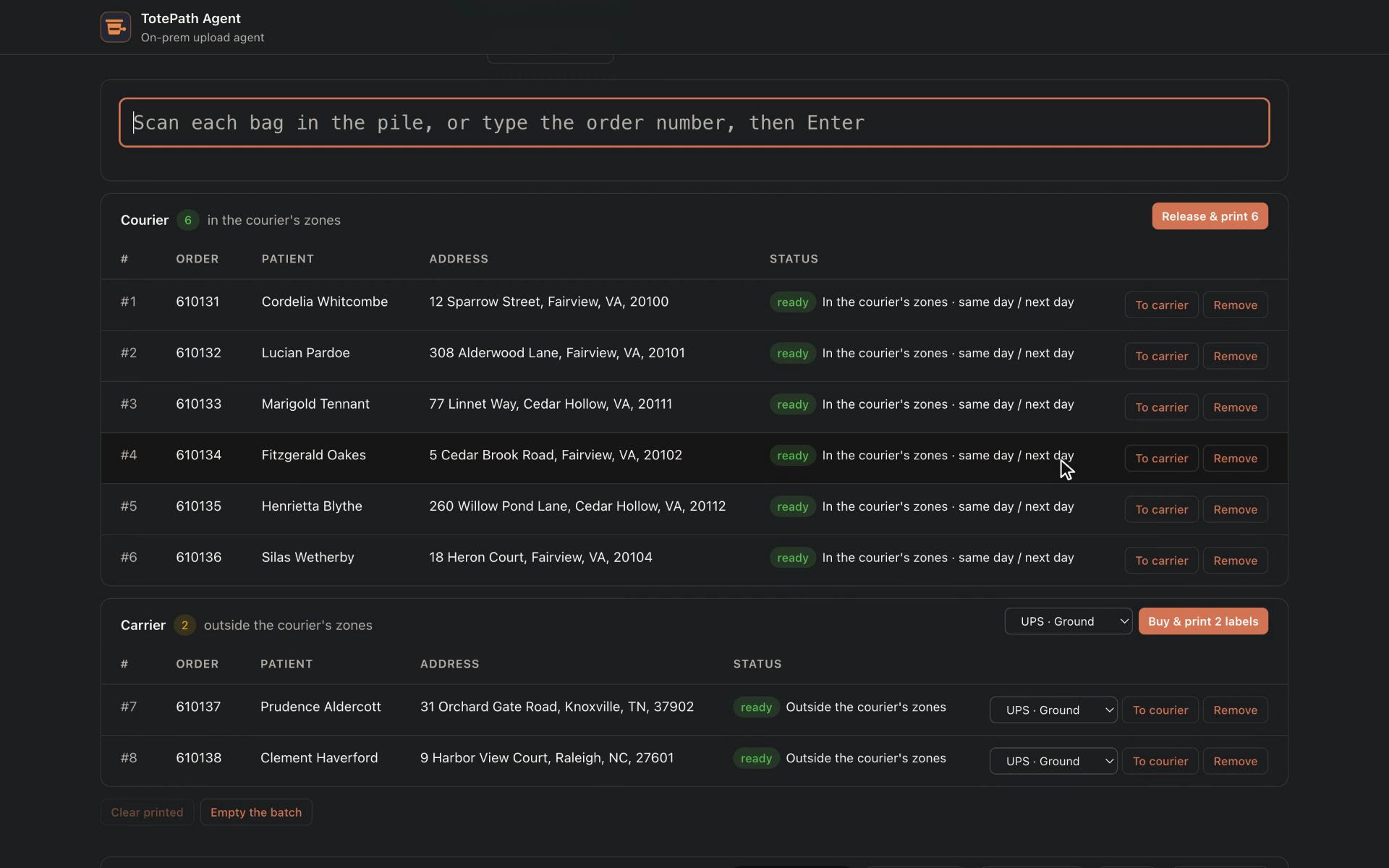
- Release a pile of bags at onceScan a pile of finished bags, let the station sort them into courier and carrier lists, then release and print each list in the order you scanned.
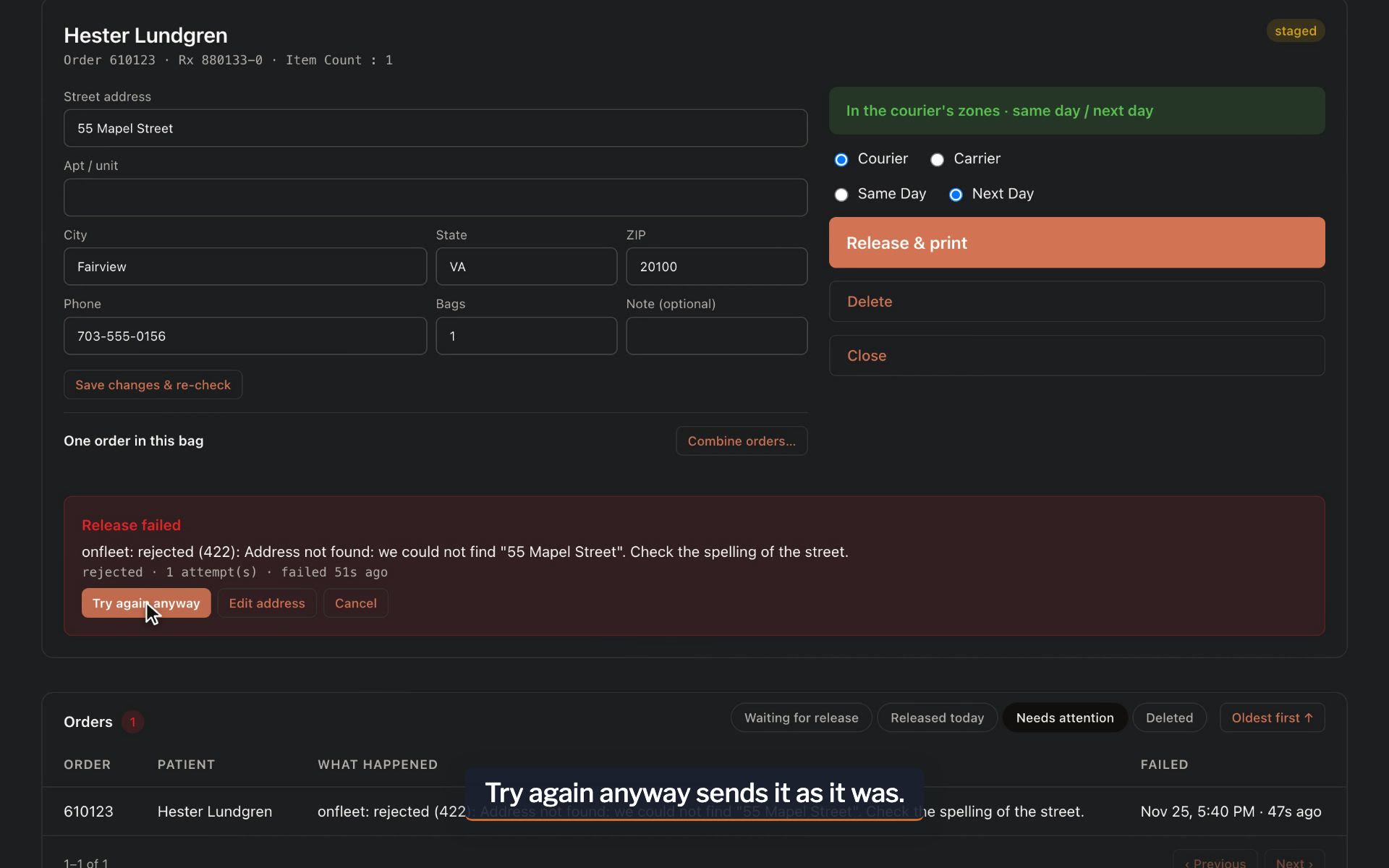
- Fix a mistake at the stationHow to print a label again, undo a carrier label, take an order out of the queue or bring it back, and fix a release that did not go through.
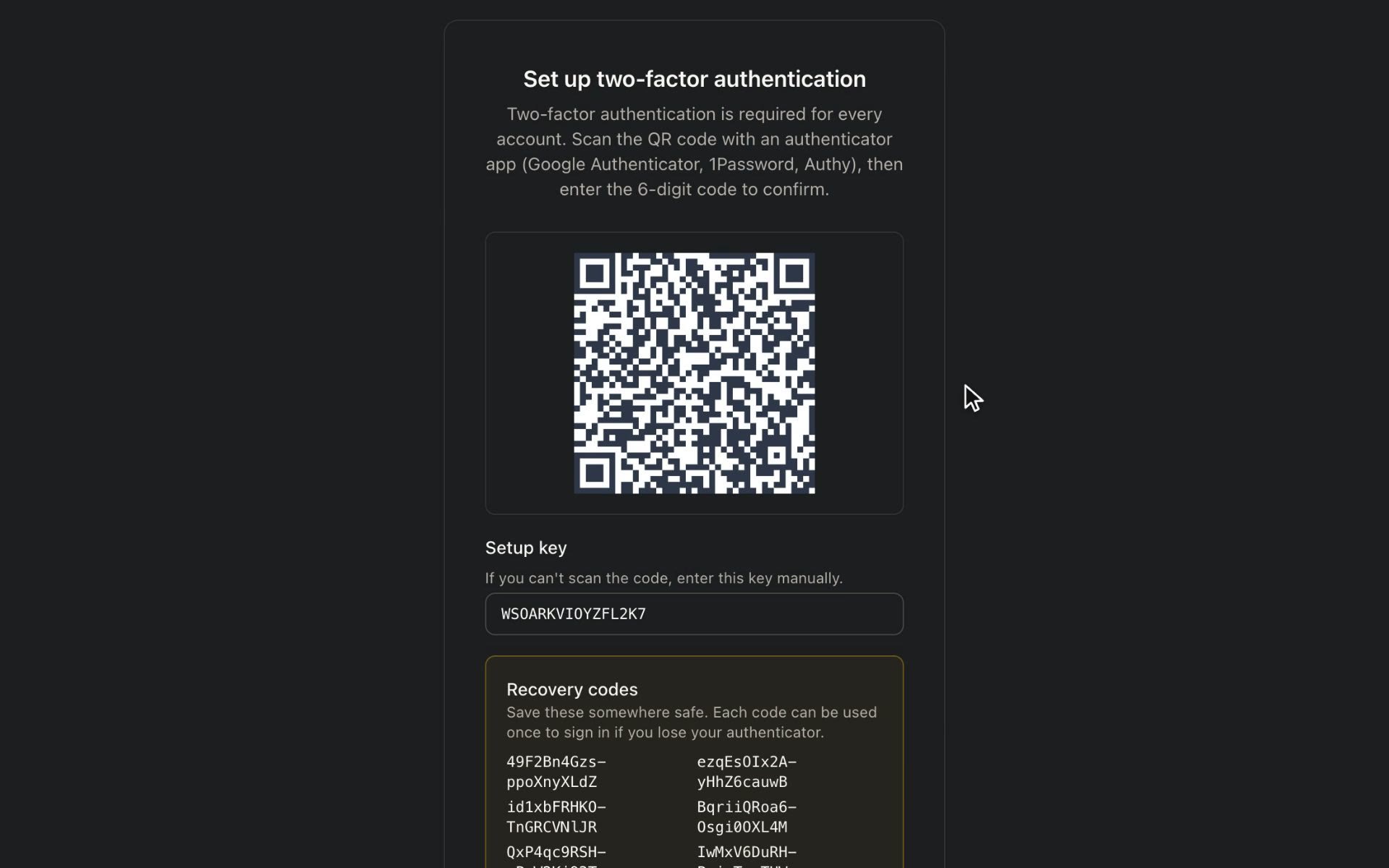
- Sign in for the first timeSet your password, set up two-step verification with an authenticator app, and sign in each day.
- Find an order for a patientLook up a courier delivery on the Orders page by PrimeRx order ID or recipient name, and know when to use the Dashboard instead.
- Check proof of deliveryFind the photos, signature and driver report for a delivery, and download the PDF receipt.
- Your Dashboard, and today's importsSee every order that has arrived from PrimeRx, what state it is in, and which bags are still on the shelf.
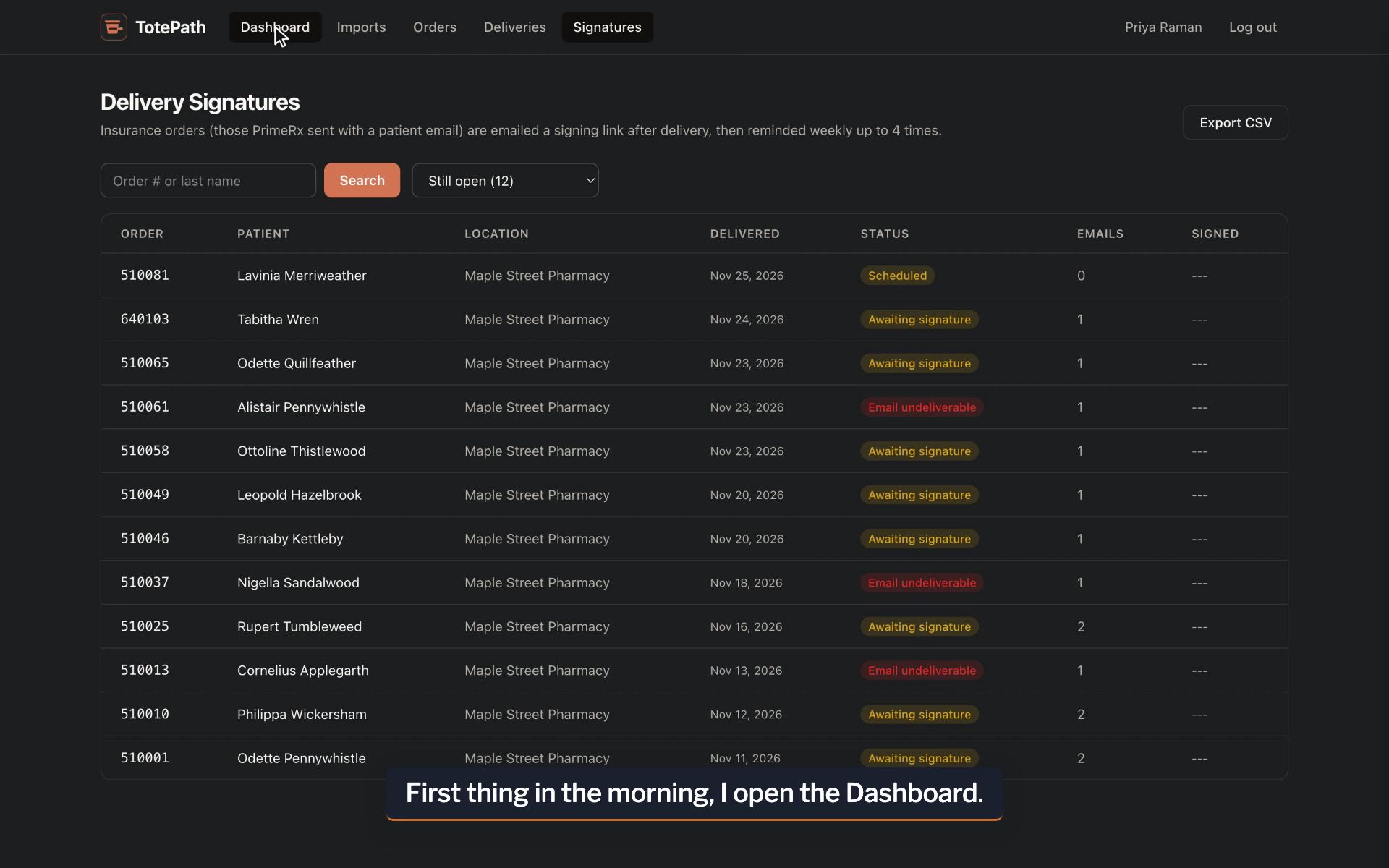
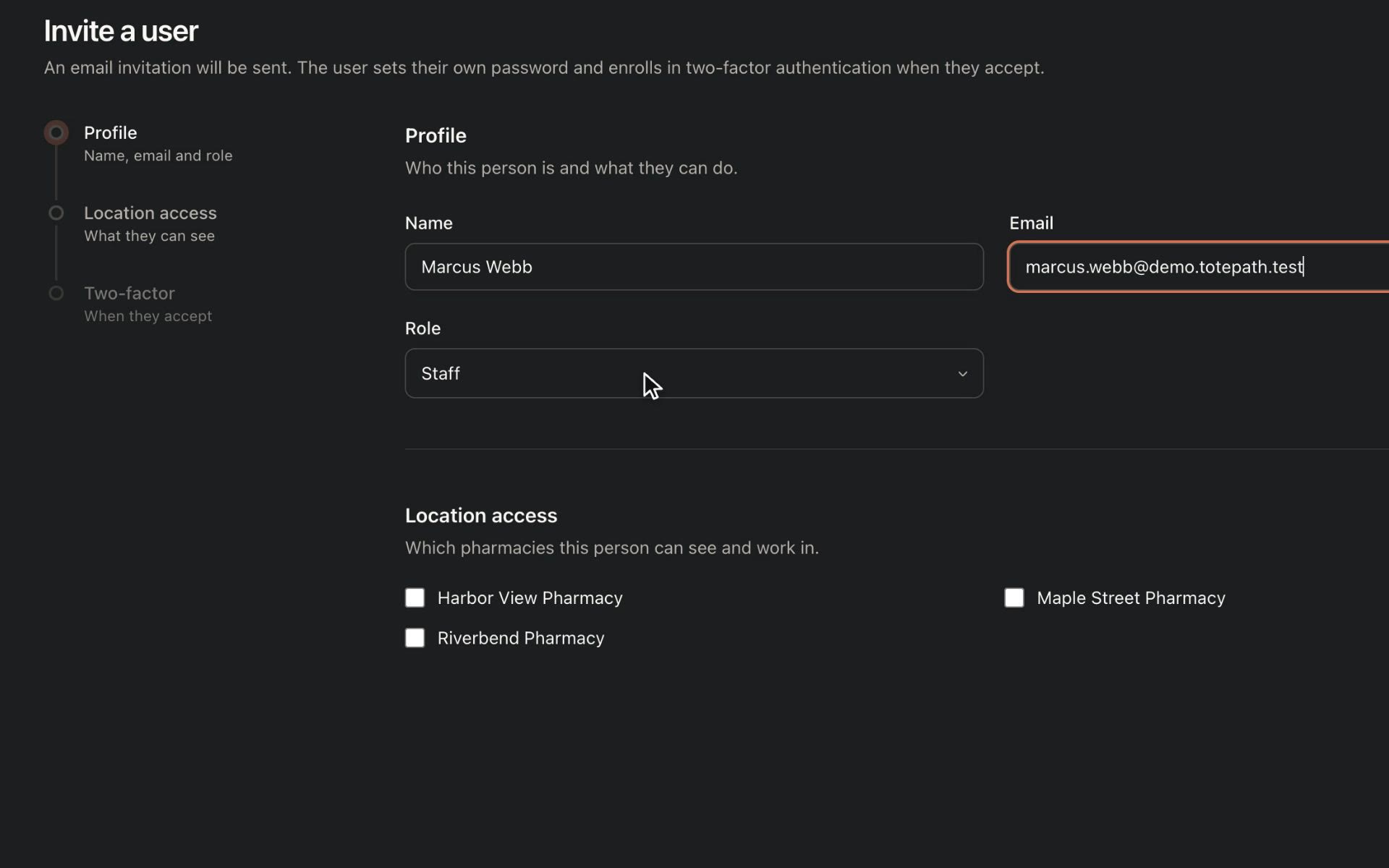
- Invite a user and set up a locationAdd people to TotePath, choose what they can see, and fix sign-in problems like a lost phone.