On this page
Help / Scan station
The Scan station at a glance
What the Scan station screen shows, how orders get onto it from PrimeRx, and how the barcode scanner behaves.
For: Pharmacy techThe Scan station is the screen on the pharmacy computer where you hand a bag over to TotePath. You scan the Rx label on the bag, check the address, release the order, and a label prints. You can do that one bag at a time, or scan a whole pile and release it together. This page explains what is on the screen so the other station pages make sense.
The Scan station is part of the TotePath Agent. Open the TotePath Agent window on the pharmacy computer and stay on the first tab, Scan station. The other tabs (Dashboard, Files, Log) are covered in Dashboard, Files and Log.
How orders get here
- Someone finishes the order in PrimeRx.
- PrimeRx writes an export file to the export folder.
- The agent sees the file and uploads it to TotePath. This takes a second or two.
- The order appears in the Waiting for release list.
An order that has arrived but has not been released yet is called a staged order. Nothing is sent to the courier or a carrier until you release it.
The three modes
Three buttons at the top of the Scan station set what the station is doing.
| Mode | Use it to | Page |
|---|---|---|
| Release & print | Release orders to the courier or a carrier and print the label. The station starts in this mode. | Release an order to the courier |
| Batch release | Scan a pile of bags, then release and print the whole courier list or carrier list in scan order. | Release a pile of bags at once |
| Handoff to courier | Scan each bag as the driver takes it. | Handoff to the courier |
Switching mode clears the bench. Release & print and Batch release show the same Waiting for release list. In Batch release the courier and carrier lists appear above it, and Needs a look appears only when something is in it. Handoff to courier has its own lists.
What is on the screen
Printer line and buttons
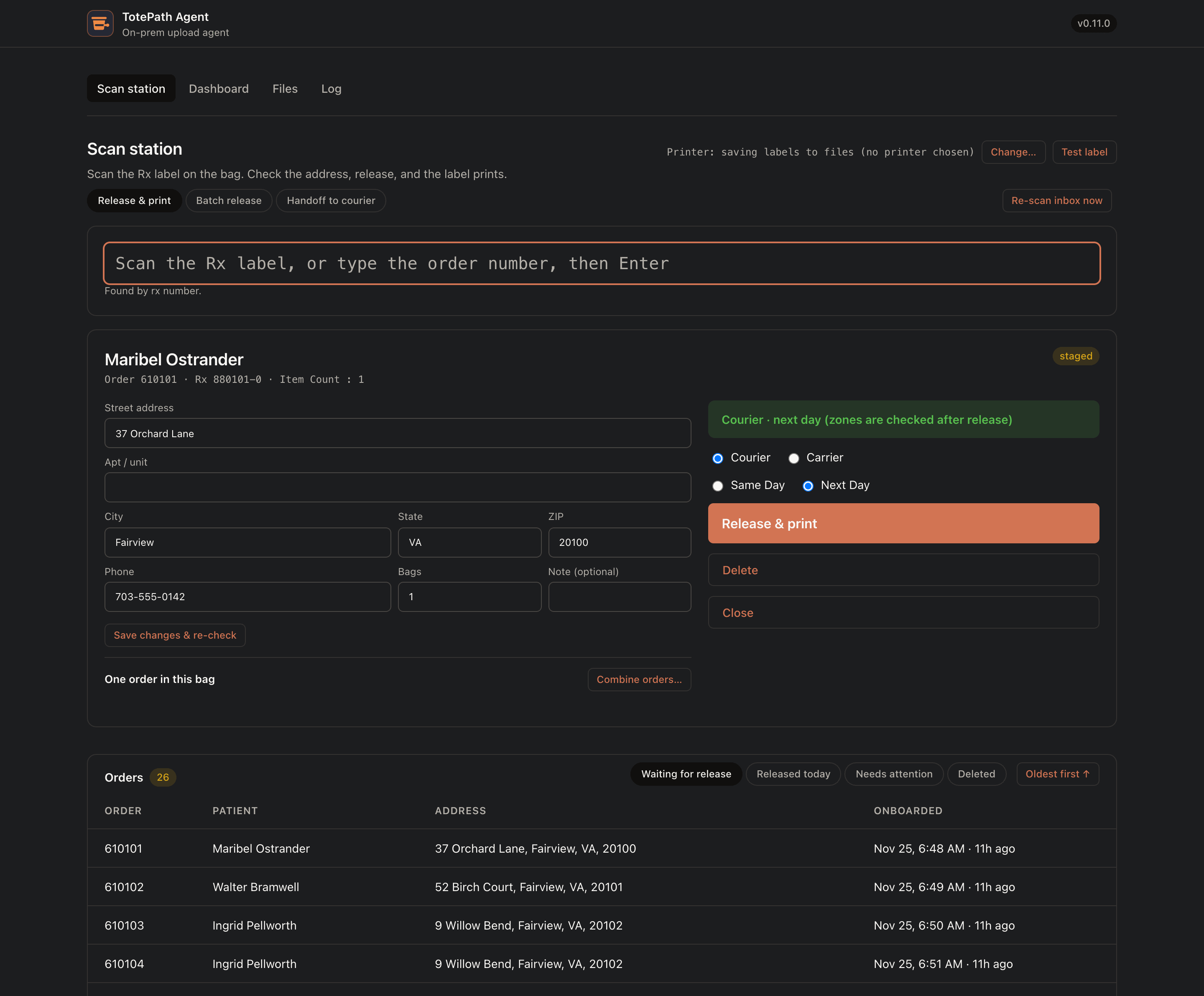
Top right you see Printer: and the printer's name. If no label printer has been chosen, it reads "saving labels to files (no printer chosen)". Nothing prints on paper in that case. Tell your manager or IT. See Bag labels.
- Change... picks a different printer.
- Test label prints a test label.
- Re-scan inbox now makes the agent look in the PrimeRx export folder immediately.
Needs attention
A strip headed Needs attention appears only when a release did not go through. Click a row to open that order. See Needs attention.
The scan box
The scan box sits under the heading. In Release & print mode it says "Scan the Rx label, or type the order number, then Enter". In Batch release it says "Scan each bag in the pile, or type the order number, then Enter". In Handoff to courier it says "Scan the bag label as the driver takes it, then Enter".
The bench
When you scan an order, it opens in a card called the bench. It shows the patient name, the order and Rx numbers, a status badge, the address fields, the Bags count and the buttons to release the order. You work on one order at a time here. Close takes the order off the bench without changing it.
The Orders list
The list under the bench is headed Orders. The buttons above it choose which list you see.
| Button | What it lists |
|---|---|
| Waiting for release | Staged orders that have arrived from PrimeRx. The columns are Order, Patient, Address and Onboarded (when the order arrived). |
| Released today | Orders released in the last 24 hours, with the service used. The service shows as onfleet (the courier) or shipstation (a carrier). |
| Needs attention | Releases that failed. |
| Deleted | Orders you deleted. They can be put back. See Fixing mistakes. |
In Batch release mode the buttons are the same as in Release & print. In handoff mode the buttons are On the shelf and Picked up instead.
The list shows 20 orders per page. Use Previous and Next to move between pages. The sort button flips between "Oldest first" and "Newest first". Click any row to put that order on the bench. In Batch release, clicking a waiting order adds it to the pile instead (see Release a pile of bags at once). The number beside Orders is the size of the list you are looking at.
How the barcode scanner behaves
A barcode scanner works like a keyboard. When you scan, it types the code and presses Enter.
- Keep the cursor in the scan box. The station moves it back there by itself when you click a blank part of the page, and every few seconds. It leaves you alone while you are typing in another field, such as the address.
- In Release & print mode, a scan looks the order up and puts it on the bench.
- In Batch release mode, a scan adds the order to the pile instead. See Release a pile of bags at once.
- In Handoff to courier mode, a scan marks the bag as taken by the driver.
- You can also type the code and press Enter.
- In Release & print mode, with an order on the bench and the scan box empty, pressing Enter releases the order with what is selected on screen. That lets you scan, press Enter, scan the next bag, press Enter, without the mouse.
The station accepts any of these:
- the Rx label on the bag, such as "Rx# 880301-0"
- an Rx number with refill, such as "880301/0"
- a PrimeRx order number, such as "610150"
- a TotePath bag label
- an older courier label
If an order was combined into a bag with other orders, scanning any one of them opens the whole bag. See Bags and combining orders.
What you will see
A short line under the scan box tells you what happened, for example "Found by rx number." It clears after a few seconds. When nothing matches, it says there is no order at this pharmacy that matches the code, and to scan again in a moment if it was just exported from PrimeRx.
If something goes wrong
- The station says it needs the agent's upload token. The agent is not set up for this pharmacy yet. Tell your manager or IT. See Station troubleshooting.
- An order you expect is not in Waiting for release. Check Deleted and Released today. Then click Re-scan inbox now.
- A red Blocked badge shows at the top right. Uploads have stopped. Tell your manager or IT.