On this page
Help / Web portal
Deliveries and routes
Browse completed routes, open a route to see every stop, and read what the driver reported.
For: Pharmacy managerUse the Deliveries page when you want to see how a route went: which stops were made, who drove, and what the driver reported at each door. Use it for questions like "did the driver get to everyone on Tuesday's route?" or "why did this stop fail?"
If you are looking for one order by its tracking number, use the Orders page instead. See Find an order.
Open the Deliveries list
- Click Deliveries in the top bar.
The page is headed Delivery History, with the line "Proof-of-delivery records for completed routes."
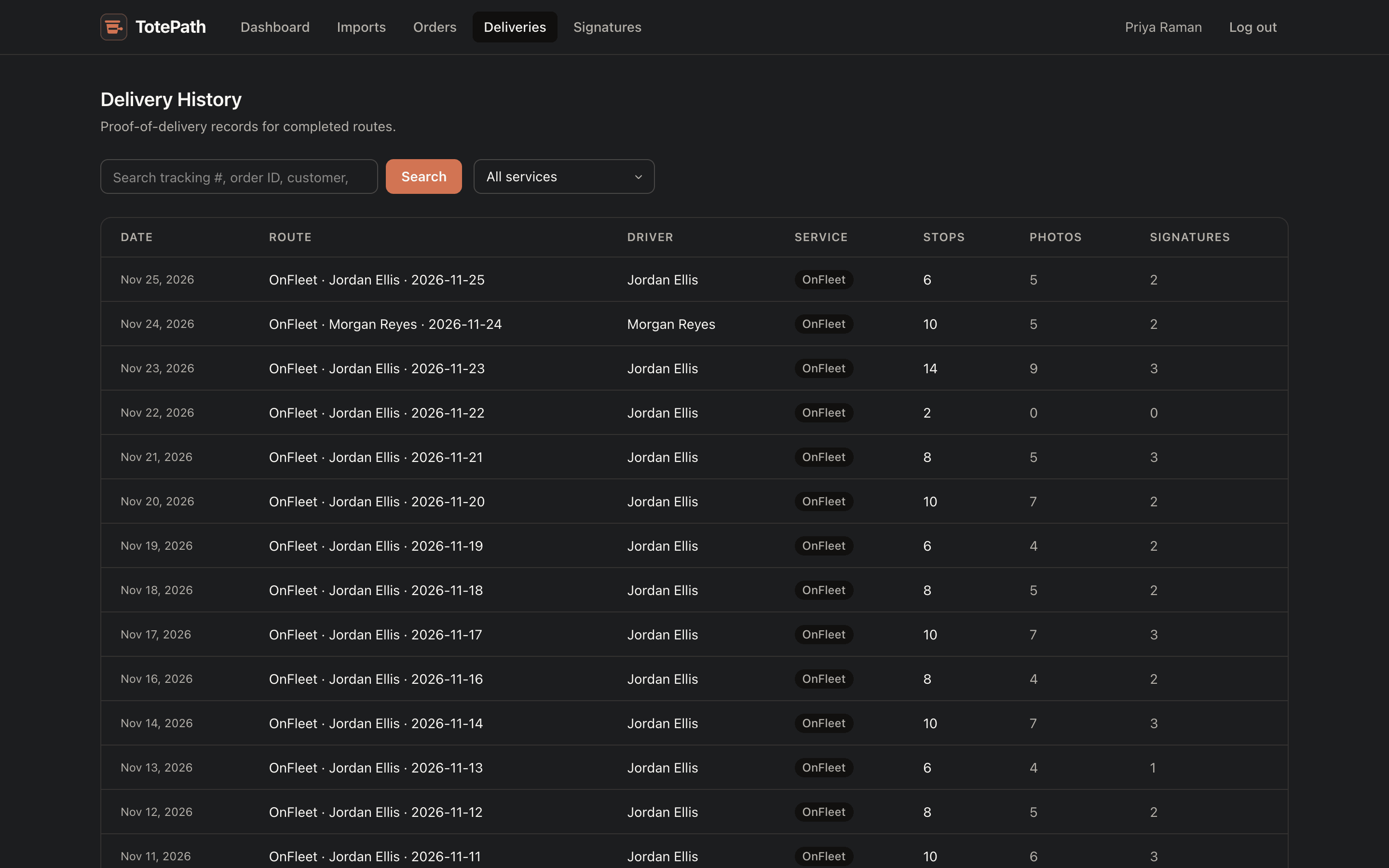
Each row is one route. The columns are Date, Route, Driver, Service, Stops, Photos and Signatures. The Service column tells you where the route came from: OnFleet for courier deliveries, or Descartes (imported) for older history. A ShipStation option exists in the service menu, but carrier orders do not create routes, so it comes back empty.
An OnFleet route is one driver's day, named "OnFleet · driver · date". Its stops include a Pickup stop at the pharmacy for each order as well as a Delivery stop at each patient. So the Stops count is not the number of patients.
You only see routes and stops for the locations you have access to. The Stops, Photos and Signatures counts include only those stops.
Search and filter
- Type at least 3 characters in the search box and press Enter or click Search. You can search by tracking number, order ID, customer, route or driver.
- Use the service menu, which starts at All services, to show only Descartes (imported) or OnFleet routes.
The list shows 20 routes per page. Use the previous and next links to move through them.
Open a route
Click a row to open the route page. If you had a search term in the box, the stop that matches it is highlighted, scrolled into view, and marked with a chip that reads Matches followed by your search.
The route page has:
- A back link, Delivery History.
- The route name, date, driver and number of stops, with a pill for the service.
- A Route card with details such as Driver, Truck, Planned Depart, Actual Depart and Actual Return. Many of these are blank for OnFleet routes. That is normal.
- A Stops section, headed with the number of stops, with one card per stop.
What a stop card shows
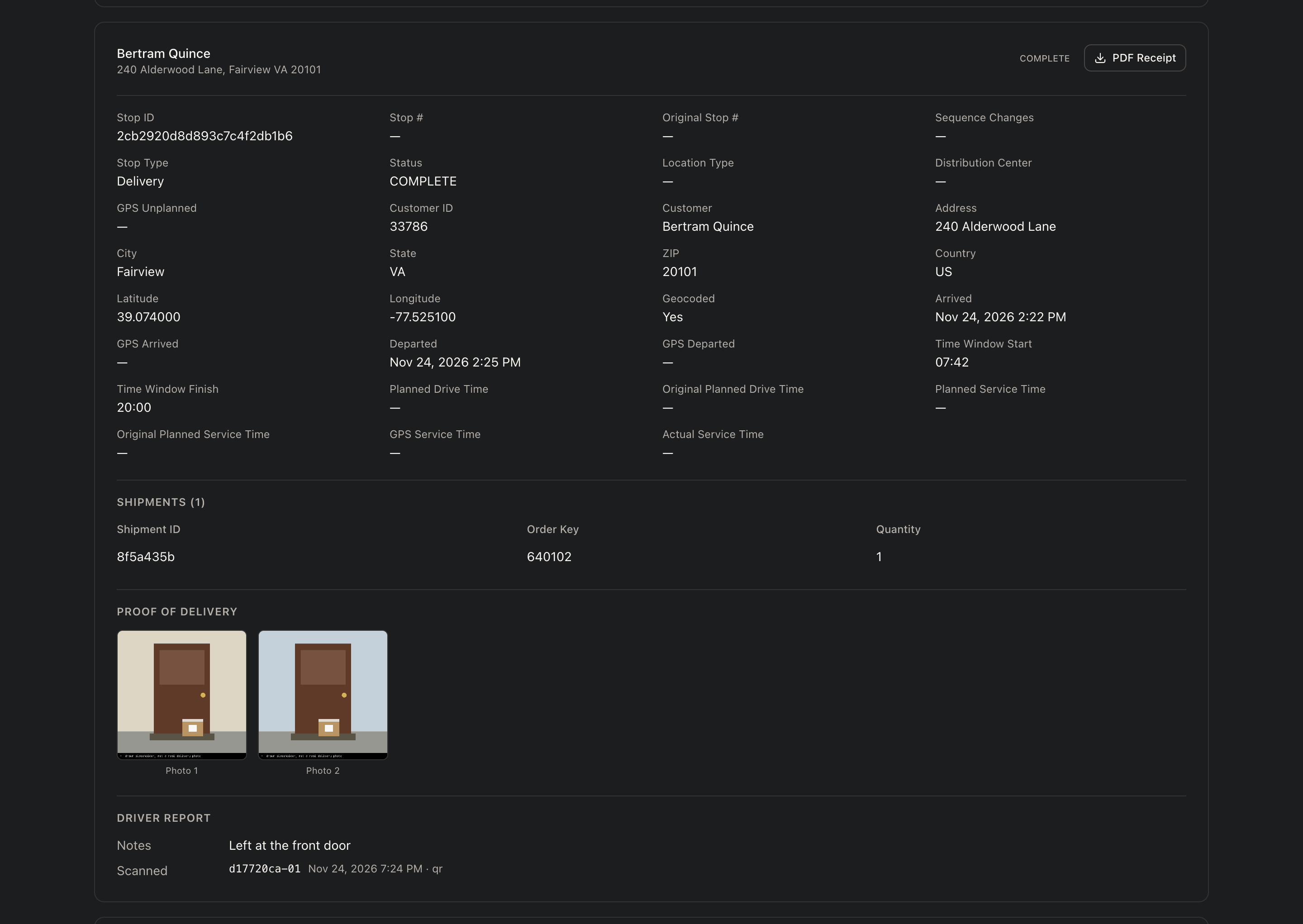
Each stop card has the stop number, the customer, the address, a status pill, and a PDF Receipt link. Below that:
- A grid of details: Stop ID, Stop #, Stop Type, Status, Customer, Address, Arrived, Departed, Time Window Start, Time Window Finish and more. Check Stop Type to tell a Pickup stop at the pharmacy from a Delivery stop at a patient.
- For OnFleet stops, Departed is when the driver completed the stop. Arrived and Stop # are blank. They are filled in only for older imported history.
- Shipments: a table of the shipments delivered at that stop (Shipment ID, Order Key, Quantity).
- Proof of Delivery: photos and the signature, when the driver captured them. See Proof of delivery.
- Driver Report: what the driver wrote or scanned, when there is anything to show.
The Driver Report
The Driver Report box appears under the proof of delivery only when the driver left something. It can contain:
| Line | What it means |
|---|---|
| Failed | The reason the driver gave for not delivering, followed by any note they added. |
| Notes | Notes the driver entered when completing the stop. |
| Scanned | Each barcode the driver scanned at the stop, with the time. A scan marked "unrequested" was not one the task asked for. |
Older imported routes (Descartes (imported)) usually have no driver report.
Failed deliveries
A stop the driver could not complete has a status of FAILED instead of COMPLETE. The Failed line of its Driver Report says why.
On the Dashboard, the same order shows the status Delivery failed. If the task was cancelled in OnFleet before delivery, the order also shows Delivery failed, but there is no stop and no Failed line here. The reason is in the order panel, under Delivery, in the Failure field, and reads "cancelled in OnFleet". TotePath does not try a failed delivery again on its own. If the patient or pharmacy needs another attempt, contact the courier's office.
What you will see
- A list of routes with counts of stops, photos and signatures.
- A route page with one card per stop.
- A highlighted stop and a Matches chip after a search.
If something goes wrong
"No delivery routes match your filters." Check the spelling, set the service menu back to All services, or search with fewer words.
"No completed deliveries yet. Routes will appear here once your orders are delivered and proof of delivery is recorded." No route has come back for your locations yet.
An order you expect is missing. Carrier (ShipStation) orders never appear here. Check the Dashboard first. If the order is still Staged or Submitted, it has not been delivered yet. See Dashboard.
"No stops recorded for this route." The route exists but has no stops you can see. If you think that is wrong, tell your manager.
A "not found" page. A route or stop outside your locations is not shown to you. This is expected.